07:01AM 06 Apr 2026

Newsletter Activator

Publisher Log In

Username 
Password 

Forgot Your Password Click Here
Sign Up Now Click Here

Subscriber Log In

   Email 
Password 

Never Logged In Before Click Here
Forgot Your Password Click Here

Latest News

This is a news item
07:01am - Mon 6 Apr 2026

This is a news item
07:01am - Mon 6 Apr 2026

This is a news item
07:01am - Mon 6 Apr 2026

This is a news item
07:01am - Mon 6 Apr 2026

This is a news item
07:01am - Mon 6 Apr 2026

CD-Cad Newsletter Newsletter

Click Here To Browse Other Newsletters In CD-Cad Newsletter


A2009 update warning (V3) Subject

Plain Text Body

     Font       Size

HTML Message

Please note that the HTML message shown below is not an accurate representation of what you have see when viewing the Newsletter in you email client.

AutoCAD 2009 News Brief...

.................

(In Outlook, right click and choose "Download Pictures")

WARNING - possible automatic migration problems.

Most people who have AutoCAD Subscriptions will be receiving their copies of the 2009 version or probably have already received them. There have been some concerns with the automatic migration process in some cases.

After installing the new version on the first start-up the Migration Tool runs automatically offering to migrate your settings and customised files from the old version. I would strongly suggest that you DO NOT MIGRATE - at least at the initial stage.

The Migration Tool can alweays be run manually later via several programmes in:

Start - Programs - Autodesk - AutoCAD 2009 - Migrate Custom Settings.

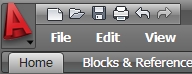
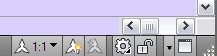
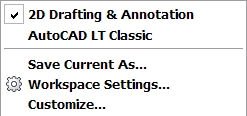
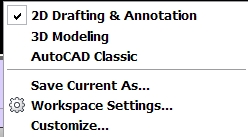
For full AutoCAD users who have modified the standard profiles and workspaces rather than creating their own, you may wish to start up A2009 and make copies of the standard profiles and workspaces before running the migration tool so that if problems occur you can alway revert to the new A2009 options for the screen visual appearance (other than the AutoCAD Classic option).. For LT users AutoCAD Profiles are not available - only Workspaces. For both versions the Workspace selection is now available from the "gear" icon bottom right hand corner of the AutoCAD window. You can also use the Workspace Toolbar if you can find it - right click over the Quick Access toolbar adjacent to the RED A.

You can use the "Save Current As" option to save the Workspace to a name of your choice.

... or ....


For further assistance feel free to call 03 3655-486 or email.

You can also download some information (Preview Guides etc) on the new versions from www.cd-cad.co.nz.


CSS Version 2.1 Compliant XHTML Transitional Compliant

Solution Development, Design And Support Provided By Evanta Web Solutions
Plain Communications Limited © 2008